SEO – How to – Conduct a Competitor Analysis
Purpose of this How To Guide: To successfully conduct a competitor analysis for our clients and incorporate the knowledge gained into our marketing strategy to help the client perform better than their competitors.
Applicable to: SEO Executives
Customers: All
Timescale: 2+ hours for 5 competitors, the more time we have, the more competitors we can investigate.
Please use the Competitor Analysis Report Template document.
Introduction
Normally carried out during onboarding, competitor analysis falls within market analysis and customer discovery and it’s a common practice in marketing, after all, to beat a competitor you need to be aware of what they are doing or offering that is outperforming your product.
Having a digital focus, our competitor analysis here at SQ will investigate a competitor’s:
- Top Performing Pages – Pages that are currently serving as landing pages
- Keywords & Content – What keywords are they using in their optimisation and do the pages have a lot or little content?
- Product Offering & Page Categories – How competitors categorise their products, how their pages are distributed in their navigation bars, and how does it compare to our client?
- Design & UX – Do they use particular colours, how do they place buttons and calls to action; do they have interesting functionalities, such as a quick quote form; is the website easy to navigate?
- Page Speed – Are their pages faster than our client’s?
- Backlink Profile & Authority Score – How many backlinks do they have and what is their authority score?
- Additional Factors – Anything else that is of interest, but doesn’t suit any of the sections above
Understanding the Client
In order to complete a successful competitor analysis, you need to know what the client wants to rank for and what their business is about, so it’s important to get to know the client. In order to achieve this:
- Visit the client’s website and try to assess what keywords they have previously tried to target. When dealing with a pre-existing website, you will have to check what the site is already optimised for. A quick assessment can be done by looking at an existing keyword plan (if they have one) or checking what keywords appear on the:
- URL
- Title Tag
- Meta Description
- h1
- Read their Discovery Document, which should be available in the company’s strategy folder in Accelo, and assess what they want to achieve.
- Talk to the account manager.
Discovering Competitors
We collate our clients’ competitors from a couple of sources:
Onboarding Discovery Document
During onboarding, and as recorded on their discovery document, our clients are asked to list who they believe are their main competitors. Find their listed website(s) and take note of their URL(s).
You will find a client’s discovery document in the company’s strategy folder in Accelo as well as their Asset Folder on One Drive.
Do a Google Search
Perform a search for the client’s main keywords and see who appears on the first page of Google. Pick the competitors that consistently appear on the first page and take note of their URL(s).
Using SEMrush
Perform a Domain Analysis to assess which competitors share the most number of keywords. The higher the number of similar keywords, the higher likelihood that you are competing in the same market.
Check if there are any crossovers between the ones that consistently appeared on your Google Search (step 2) and the ones listed by SEMrush.
Domain Analysis in SEMrush
- Domain Analytics > Organic Research > Competitors – run URL through the tool making sure that the Database is set to the ‘United Kingdom’ and the Date for the previous month.

- In the Organic Competitors table use the common keywords column to identify which competitors use the most similar number of keywords.
- Go through the competitors’ websites and determine which competitors most closely resemble our client – for instance, if our client is a jeweller that only sells high-end jewellery, look for websites that offer the same offering for the same level of market.
- Take note of their URLs
Once you have shortlisted the top five competitors, write their name down on the prewritten intro on the Competitor Analysis Report template. Don’t forget to mention any keywords searched to arrive on your shortlist.
Tips:
- At this point, unless the client already has a keyword list from previous SEO efforts or we have already created a keyword plan for them, you might be making an educated guess as to what keywords they should target based on what you find. This is OK for the purpose of comparison and should, later on, help you refine or create the customer’s own keyword list and plan.
Investigating a Competitor
Once you’ve determined which competitors are relevant, using the Competitor Analysis Report template, follow the following process and report your findings for each competitor and as well as the client, starting with the client.
1. Top Performing Pages
Using SEMrush (Domain Analysis > Organic Research > Pages), run the URL through the Organic Research facility.
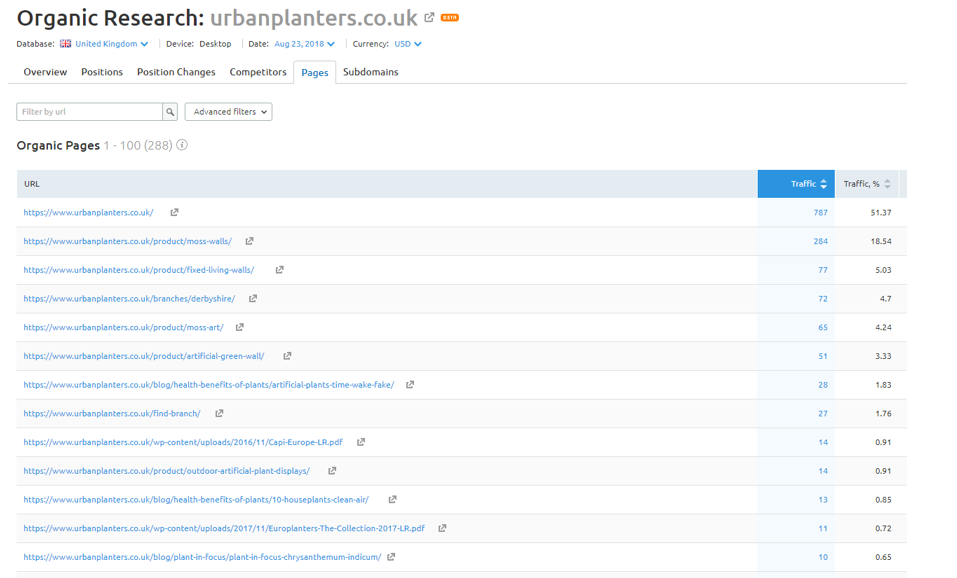
Check their “Top Pages” and take note of the competitor’s top 20 performing pages, including traffic and traffic percentage.
2. Keywords & Content
- Looking at their top performing pages, visit the competitor’s website and assess which keywords are being used in those pages. Take note of the keywords in the keyword table in the Competitor Analysis Report.
- In the same table, also record the amount of content on the pages in terms of wordcount – Thin (under 300 words), Moderate (under 700 words) and Extensive (over 700 words).
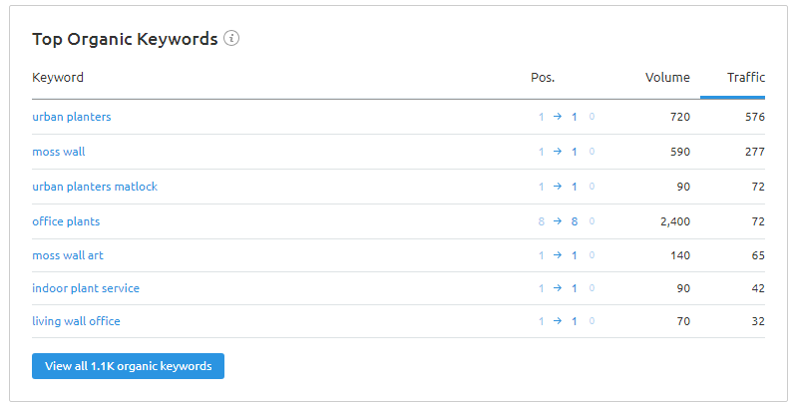
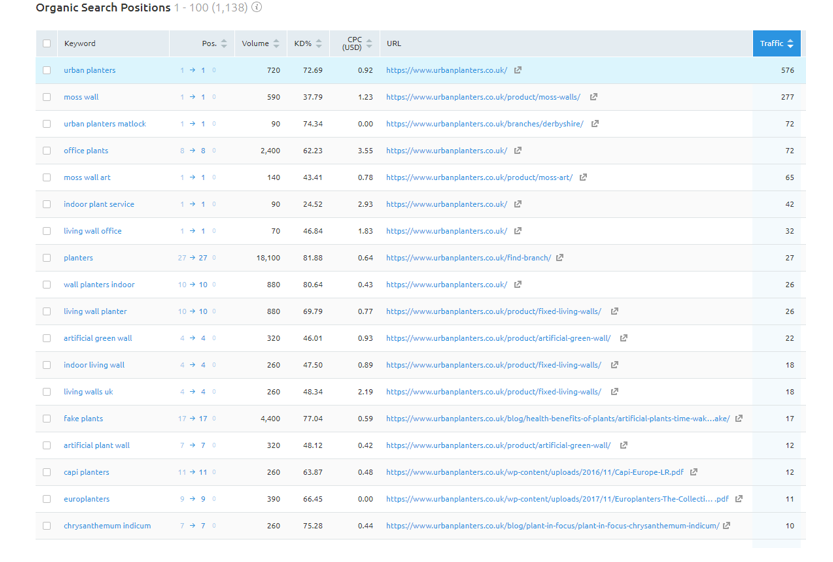
- Visit SEMrush and run the URL through the Organic Search feature. Check their Top Organic Keywords and take a screenshot of their top 20 keywords including their position, volume, URL and traffic.
3. Product Offering & Page Categories
Looking at the competitor’s website…
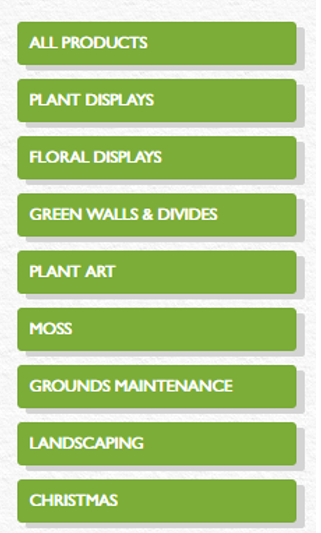
Check how they divide their navigation and list their products. Take a screenshot of their navigation bar and product categories. If they are using the correct data, they will be trying to highlight what their customers are looking for by adding it to the navigation bar. Make notes of anything you think is worth highlighting (see notes in italic below).
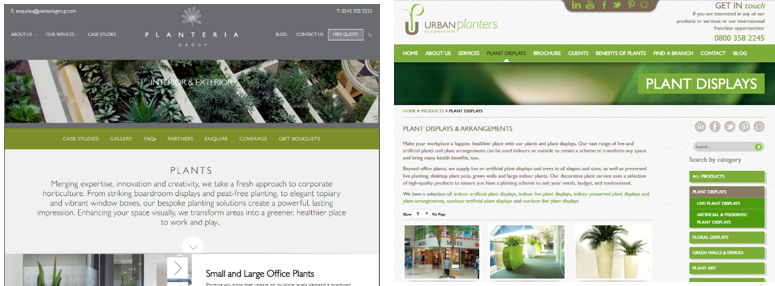
For example, Planteria is a client and they supply plants and flower arrangements to commercial and corporate spaces. Urban Planters is one of their competitors according to Google SERPs for “office plant suppliers”. In their top navigation bar, they highlight “Plant Displays”, “Brochure”, and the “Benefit of Plants” as well as the expected “about us”, “blog” and “contact” pages. Under “services” they also highlight a range of products, including “plan displays”, “floral displays”, “green walls and divides”, “plant art”, etc. Plant displays appears twice, both in the main navigation bar and the product list. This means it’s important to them, more than any other product.

They also appear to push their social networks, by displaying their social links right at the top of the page. This would indicate they want to have a strong social presence and are using social to showcase their work.
4. Design & UX
While you are on the competitor’s website, make notes on how easy it is to navigate, placement of call to actions and buttons, as well as any graphic design details. Take screenshots of the details you are highlighting, as this makes it easier for the client to understand what you mean.
For example, going back to our client – Planteria, most of their competitors use green as a main colour, which ties in well with plants and flower arrangements, while Planteria uses mostly grey. Urban Planters also makes it easy to navigate in between products by keeping the product sidebar available throughout their product pages, while with Planteria you would have to return to the top navigation bar.
5. Page Speed
- Using Page Speed Insight run the competitor URL through the tools, take a screenshot of the result and add it to Competitor Analysis Report.
- Write a short analysis of what these metrics represent and mean.
6. Backlink Profile & Authority Score
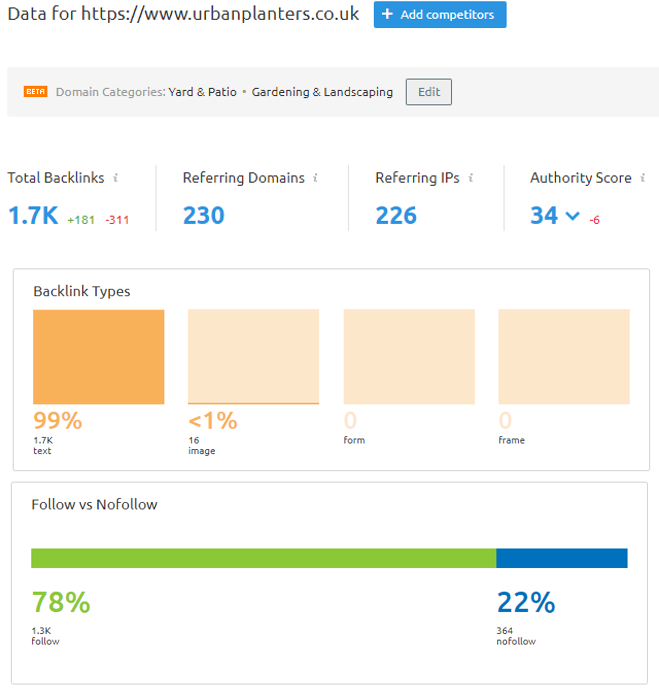
- Using SEMrush, run the competitor’s root domain through Domain Analysis > Backlinks and take a screenshot of the results including “Total Backlinks” and “Authority Score”, followed by “Backlink Types” and “Follow vs. NoFollow”.
- Write a short analysis of what these metrics represent and mean.
Writing a Conclusion & Making Recommendations
Once you have gathered all the data, it’s time to draw a conclusion for the client and make recommendations. Have a read through and highlight where you believe our client could improve in comparison to their competitors quoting each section covered:
- Top Performing Pages – What pages work best as landing pages for the competitors? Does the client have these pages? Could they be added?
- Keywords & Content – What keywords have been used by the competitors, does the client use these keywords? Is the client’s content better/longer than the competitors?
- Product Offering & Page Categories – What are the most popular categories or the categories that keep reoccurring amongst all competitors? Does our client have that category? Is the way other businesses categorise their products easier to optimise?
- Design & UX – Are there particular colours being used? Do any of the competitors use any functionalities that are more interesting, dynamic or engaging? Is the client’s website cluttered or harder to navigate by comparison? How do they use call to actions and buttons?
- Page Speed – Are their pages faster them our client’s?
- Backlink Profile & Authority Score – How many backlinks do competitors have and what is their authority score? How does the client compare?
- Additional Factors – Anything else that is of interest but doesn’t suit any of the sections above. How does it compare to the client?
After the Analysis
- Once the Competitor Analysis Report is written, send it for proofreading.
- When ready, send it to the account manager for final feedback.
- If they are happy, the account managers will then send it on to the client.
- Keep the information you have learned and use it to assist with keyword planning or campaign planning, for instance, you could look at improving site speed or discuss improving UX functionality with the client.
- Once the account manager has approved your competitor analysis, add the final copy of the analysis to the task, the client’s strategy folder in Accelo, and the client’s Asset Folder in one Drive.
- Complete your Competitor Analysis task in Accelo.