PROJECT TEAM – How to – Check an Interval
Purpose of this How To Guide: Following this guide will let anybody check intervals (IE perform Project Manager interval checks).
Applicable to: All
Customers: All
Timescale: Check Every Interval roughly every 2 days
Introduction
Project Managers check intervals every day. Duncan checks with a systematic method that ensures every interval is viewed roughly every 2 days.
This guide describes when to check, how to check and what to do if you find an issue.
Please do clarify which Customers you are to check because you may only be responsible for a selection of them.
Interval Checking Schedule
It is important to check in a systematic manner because you need to make sure you see every interval. This could potentially take many hours and you do not want to lose track of which you still have to check.
Check intervals in manageable groups, EG “All Silvers”, then “All Golds” etc. Duncan uses the following schedule but you can use whatever works for you so long as you do check everything every 2 days.
- Check All Platinums
- Check All Golds
- Check All Silvers
- Check All Bronzes
- Check all that have started in last 7 days (Ensure all is planned correctly)
- Check all that will end in next 7 days (Make sure everything is on target)
Please note that these URLs all open the same (Intervals) page in Accelo which has had filters applied to it (“Expiry Date” and “Monthly Contract Type”).

Daily (non-Interval) Checks that identify issues in your Intervals
The principle with these checks is to identify “possibly at risk” Tasks through the links below and to look at conversations in these Task’s streams to understand if action needs to be taken. If in any doubt to ask those involved by creating a note in these Task’s streams.
- Investigate and understand reasons behind possible missed Planning Tasks
- Investigate and understand reasons behind possible unspent SEO & Content Pools
- Investigate and understand reasons behind possible late Tasks
- Investigate and understand reasons behind possible missed Quality Control requests
- Check Planning Meetings are scheduled (look in Outlook) on a date that aligns with the Planning and Health Check tasks in Accelo (and that right people are invited)
- Look in Company level Streams to see if there are are any things you need to take action on (EG an email from a Customer asking us to change their retainer). If you are a new PM you need to be set up so that all communications relating to your Customers come into your Outlook Inbox (because this is a faster way to scan through all recent communications than individually opening Company Streams).
How to Check an Interval – Short Answer
Identify Possible Issues by looking at everything in the interval to make sure it is what you expect to see. Consider Usage by Hours, Due dates, task statuses and any notes in task titles or descriptions, or in the Interval’s stream.
How to Check an Interval – Long Answer
It is a good principle to get the big picture of an Interval before exploring any individual issues in more depth. There are no absolute certainties, and if in doubt it is best to investigate and ask people.
These checks can probably be done in any order, and the order below is roughly the order in which Duncan does them:
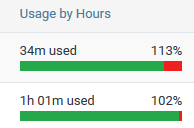
1. Check the “overall picture of Usage by Hours”
If tasks are generally taking longer than budgeted (IE you see lots of red) then we may have an issue with the Interval and the AM (Account Manager) and the Lead should be told. It may be that we find the Customer difficult to work with and should consider changing our approach or stopping offering them our services.
- Is there a lot of red? (EG are half or more of the tasks over budget by more than 30 minutes or more?).
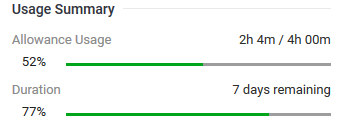
2. Check Usage Summary
Please note that time is almost never logged accurately, and that you are only really checking to get an initial clue whether there might be issues.
- If there is no time logged then you may have an issue.
- If the interval is almost complete and very little time is logged then you probably have an issue.
- If there is more time logged than the interval’s budget then you may have an issue.
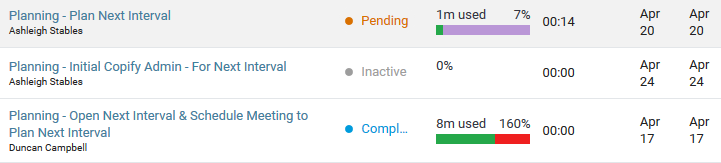
3. Check that Planning Tasks are Completed Correctly
Planning needs to be complete for the interval (or the next interval) to move ahead correctly. If anything is roadblocking planning tasks then you will need to take action.
- Are these tasks marked “Complete”?
- Do they have appropriate time logged against them? (EG you can’t plan in 1 min).
- Are they late?
4. Check Due Dates and Statuses
You need to know whether tasks are on track and whether they are “on the Assignee’s radar”.
- Are these tasks late or nearly due?
- Do all tasks have due dates? Do they feel right? (EG appropriately spaced throughout the interval at what look like correct
- Does the task status indicate the assignee is working on this?
- Should the task have been started but there is no time logged and status is still “Pending”?

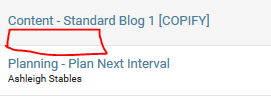
5. Are all tasks assigned?
Sometimes tasks will have been correctly unassigned but this is rare. Always investigate unassigned tasks.
- Are any tasks unassigned? (Note that a “Blog [COPIFY]” should always be unassigned).
6. Has all budget been spent (and not overspent)?
Sometimes planning can be erroneous and too much or too little time will have been spent on an interval. It is always worth digging deeper because tasks.
- Does the total duration of planned tasks + templated tasks = interval budget?
- Has the task “SEO & Content Pool” been fully spent?
7. Do any task titles indicate a Possible Issue?
Task titles can contain clues about task statuses. EG “In QC” or “Sent for Approval”. Check these to make sure there is not a delaying problem that is blocking task completion.
- Check task title suffixes (the bit sometimes added at the end of task titles). A Suffix almost always means that the colleague has stopped working on this and is waiting for someone else to take action. This can lead to the task “slipping through the cracks”, and sometimes the colleague

8. Skim the Interval’s Stream
The Interval’s Stream can contain notes that might describe “special circumstances” for the Interval that you should be aware of.
- Skim the Interval’s Stream, looking for anything the AM or other colleagues may have recently written that might describe special circumstances for this interval (EG this interval will be 4 hours short because we spent that budget last interval).
How to Investigate Possible Issues
Once you have identified Possible Issues you now investigate them. This stage is about gathering information and asking questions. There are no “set places” where people will leave the notes and clues you need.
Investigate Possible Issues by:
- reading all the notes in the task streams
- reading interval stream
- reading company stream
- checking the previous interval
- checking your email inbox for related information
- asking colleagues by NOTE through the Task’s stream
- talk to colleagues
Remember to add any information you have learned into the task as a note (Duncan just sends these notes to himself) so that the answer is there for anybody else who identifies the Possible Issue and wishes to investigate.
How to Take Action
Take actions yourself as appropriate. Act courteously, respectfully and professionally. Give the benefit of the doubt (EG if a blog seems to have been in QC for a while then check the QC task and ask the Lead if they have done the QC).
Some actions will not be your responsibility so make sure the right people are fully aware that they need to act. Usually do this by messaging them in a note from a task stream and then by calling to ensure handover of the note.
If in any doubt then make sure a Lead or AM is aware of potential issues that may affect the Customer.
Conclusion/Summary
Checking intervals and taking action supports your colleagues by removing roadblocks and solving problems.
Being a PM (or performing PM interval checks) carries a responsibility to remember this “supportive and empowering” objective. Be kind and “nag nicely”.