PROJECT TEAM – How To – Close an MC Interval
Purpose of this How To Guide: To inform Project Managers and Leads how to check and close Intervals in Accelo.
Applicable to: Project Managers, Leads and other MC Managers
Customers: All with Monthly Contracts
Timescale: Of concern once the Interval has, or is about to, expire.
Introduction
Intervals have two status’ – Open and Closed. Whilst Open work can be logged and Tasks can be interacted with. Once Closed the ability to log work and change Task status is denied.
Closing an Interval is an opportunity to check through the work logged, be sure that everything is in order and then sign it off as complete. Time logged can be adjusted and set as billable or non-billable.
Process
Finding Intervals that need Closing
For any given Monthly Contract go to the Interval Stack – see Illustration 1. Or try a Filter in the MC → Intervals database screen e.g.
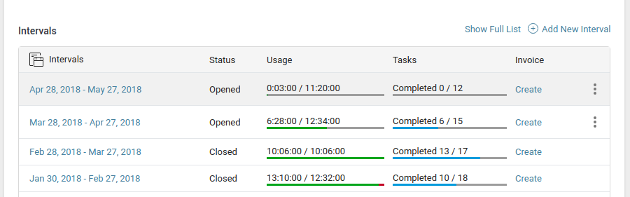 Illustration 1 = Interval Stack in a Monthly Contract
Interval has expired
The necessity to Close an Interval before its expiry date is very rare. Intervals that have gone past their expiry date are those that will need closing. Intervals with Tasks that are still open (e.g. for client approval) may need keeping open until those Tasks are complete.
Manage & Approve Time
A menu option on the Monthly Contract and Interval pages allow you to check through all work logged against a given Interval – see Illustration 2. (NB. On the MC screens it will take you to a complete list of Intervals with all their logged activities – see Illustration 3 whereas the button on the Interval screens will just take you to a list of activities logged for that Interval – see Illustration 4.)
 Illustration 2: The Manage & Approve Time Button
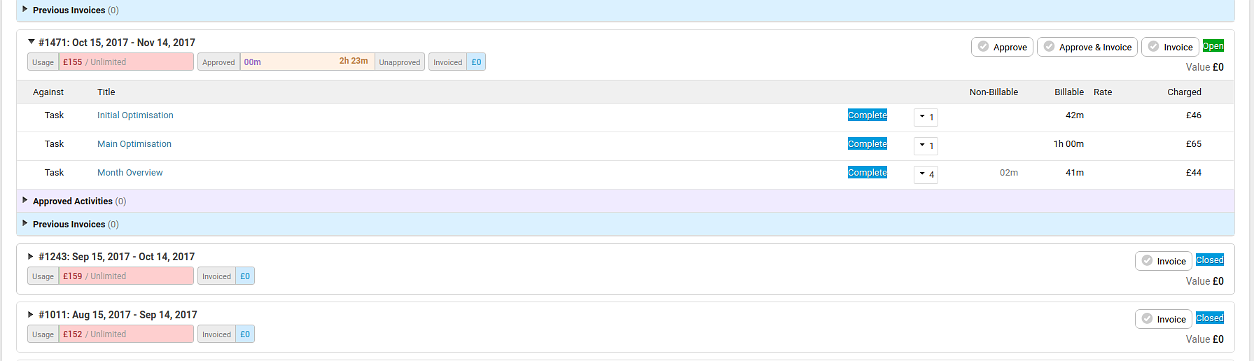 Illustration 3: Interval Summary in Approve Time Screen
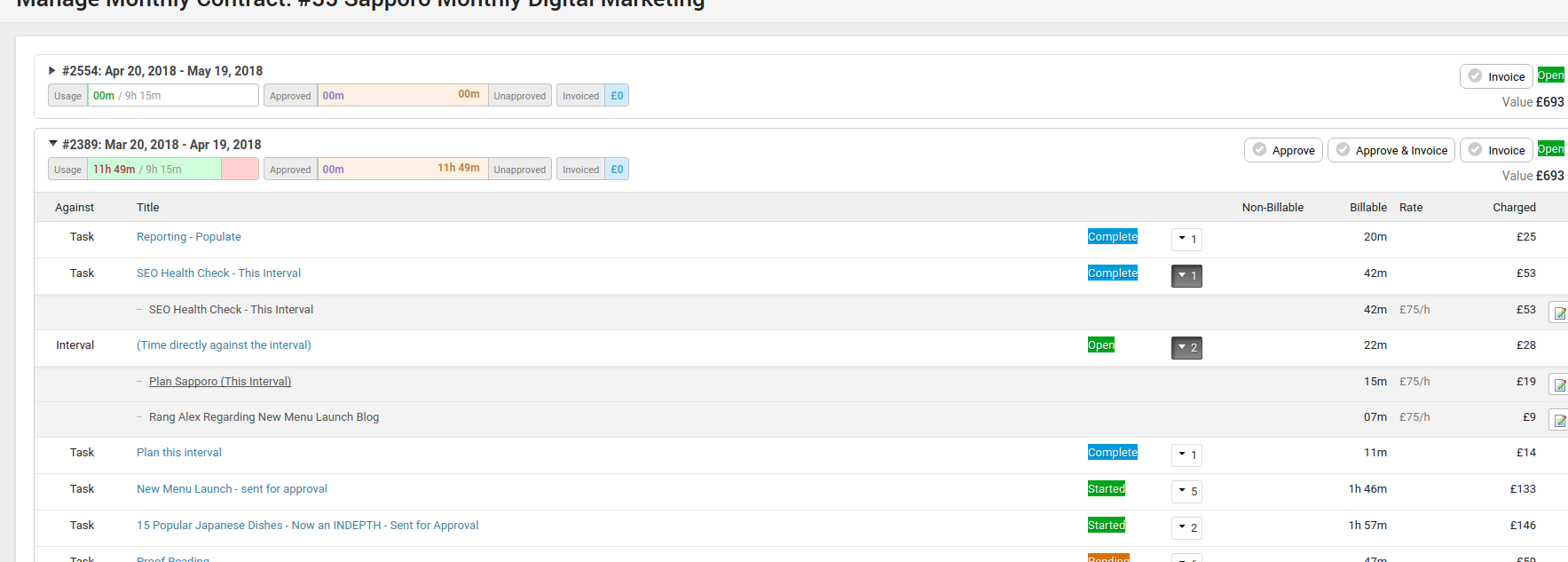
Illustration 4: Interval Summary in Approve Time Screen
Approving Time can be done either on a per activity basis or all at once, the latter assuming that you are satisfied that everything is in order. Nevertheless, the facility to check through an Intervals logged work is essentially a part of Quality Control.
Official Accelo User Guides
Other Notes
It may be necessary to re-open Intervals on occasion. To re-open an Interval go into it and pull up the More button. If you do not have a Re-open option there it is likely you do not have permissions and therefore will need to find someone else to open it for you (usually a Project Manager).
Invoicing can be ignored for now since we do not use this feature of Accelo.