Purpose of this SQ How To: Inform people of how to maintain their Accelo schedule & timekeeping daily, in line with SQ Digital best practices
Applicable to: Digital Marketing
Timescale: Performed daily
Introduction
As an Accelo user, you are expected to maintain your schedule, keep tasks up to date & log time. These practices help SQ Digital keep their services priced correctly for customers and help employees have a manageable daily workload.
Any time spent performing this daily Accelo management should be logged directly against SQ Internal, as Internal time.
If anything covered in this document is unclear to you, or you feel you need some training on anything mentioned, discuss this with your Line Manager and it can be arranged.
Morning Schedule Management
The first thing you should do when you start work for the day is visit ‘My Schedule’ in Accelo (find this from the top navigation, under schedule). From here you can see all your overdue tasks, what Accelo has you booked for today, and any meetings Accelo believes you will be attending (pulled from your Outlook account).
Overdue Tasks
Review all your overdue tasks, send messages to whoever you are depending on for the tasks and look to see if you can complete them. Anything that remains overdue for too long needs discussing with your Line Manager.
Meetings
Displayed in a dark pink colour in your schedule bars, these are pulled in from your Outlook account. You can click a cross to remove them if you are not attending the meeting, otherwise, leave these as they are so you can log time & notes against them once you have attended (covered later in this guide).
Tasks
Tasks will be displayed in either a purple or dark blue. Dark blue is tasks committed to be completed that day, purple is tasks that are waiting for you to move to the correct day. Review the purple tasks and commit them to the day you will do them.
Review Schedule
Now that your day has been organised, if there are any issues with the tasks you have, or you feel there is more (or less!) than you can complete in the day, discuss this with your Line Manager and they can help prioritise your workload.
Accelo Inbox
Review your Accelo inbox, action all the messages you are aware of and follow up any that are unfamiliar to you. Anything that cannot be removed by actioning will require you to do a further action, such as log notes against a meeting. Once you have attended the meeting and added notes you can then clear the message as normal.
Timekeeping – Admin & Misc
When performing morning admin or any other tasks that you cannot attribute to a customer task, you can log the time against specific locations within SQ Internal. Do not log directly against SQ Internal.
Each department has a retainer for admin time, such as SQ Content Department Admin:
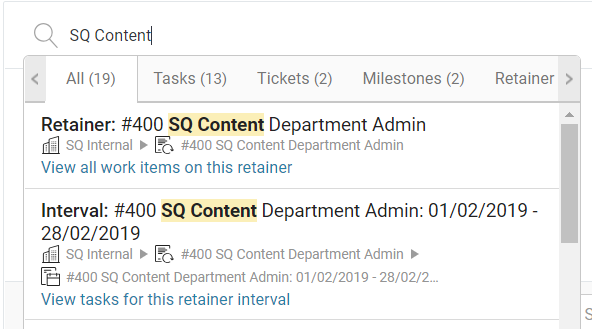
- Make sure when logging time to these retainers that you log against the right month.
- Internal time is not billable to a customer, so mark it un-billable.
- When attending 1-2-1’s and other HR related meetings, you can log these against SQ HR & Administration.
- Any meeting or activity that is spanning multiple departments can be logged against the department retainer for whoever set up the meeting/task.
Timekeeping – Timers
Return to My Schedule between working on tasks to see what you are going to do next, open the task and start a Timer. Keep your Timers open on Accelo as you work and Pause & Start them as needed. Once you have completed a task you can click the tick on the Timer to complete it, adding any additional information to the note that is logged against your task.
Interruptions and agile working
If you find yourself interrupted mid-task, or you must move between tasks, make sure you pause the task and start a new timer for the new activity. For interruptions, pause your current timer and start a new one, if it’s a substantial interruption you can log this time against the customer it is about, or SQ digital if you are unable to associate it to a customer.
Completing your timer
When you finish working on a task (regardless on if the task is fully complete) you should complete your timer and log it against the relevant task. When doing so, also ensure you change the class of your work to match what type of work you were performing.
Timekeeping – Meetings
Your meetings should be pulled into your schedule. Once you have attended it you can visit your Daily Timesheet or Accelo Inbox. From these locations you can find your meeting, log the time for attending it and add detailed notes about the meeting, including any actions you have taken from it.
Being the first person to log a meeting
Meetings pulled from your Outlook are essentially a placeholder once in Accelo. Once you have attended the meeting, if you are the first person to log your time you’ll need to ensure you convert the meeting and attribute it to the right task or retainer the meeting was for.
Attending a meeting you weren’t scheduled for
If you attended a meeting that hasn’t appeared in your Schedule or Time-sheet you can use the search bar at the top to locate it, start typing the gist of the meeting (e.g Campaign Planning Meeting SQ Digital) and the search bar is very good at finding the meeting for you to then log your time & notes against.
Timekeeping – End of day Time-sheet
Time-sheet
At the end of the day you should visit your Daily Timesheet, found under Time on the main navigation. From here you can review your day, make sure you have the right time marked against your activities and spot any gaps where you need to log your work.
Timers
Review your active Timers and make sure you complete them. Completing the Timer doesn’t complete the task, so ensure you log the Timer for the right day even if you haven’t finished the overall task. You should have no active Timers left over as you finish the day and you should start fresh ones the next day.
Classes & Billing
When reviewing your Daily Time-sheet, take care to ensure that any time worked on a customer account is logged as billable & that its Class has been updated to match what type of work you were preforming.
Vacation Calendar
If you have agreed any time off, you can visit your vacation calendar in Accelo. Go to your account via your initial in the top right, then go to preferences. From there you can click the day you are off, set your time off, and add how many hours you are off – we work 7.5 hours per day, and therefore 3.75 for a half day & 37.5 hours per week.