Reporting – How to – New Reporting Mechanisms
Purpose of this How To Guide: A guide to the mechanism for getting executive reporting write-ups into the client reports.
Applicable to: Leads, Account Managers, SEO and Content Executives, Reporting staff
Customers: All with Monthly Contracts
Timescale: Of concern once the Interval has, or is about to, expire
Introduction
An initial attempt was made to streamline reporting around the beginning of 2017 by adopting the Ninjacat software and moving reporting from something involving Powerpoint/Spreadsheet amalgamation to a more sophisticated solution meant to allow many reports to be run off of a handful of templates. However, for one reason or another, what resulted was a system that ended up having hundreds of templates – practically one per client, which was not the solution that had been hoped for.
The Ninjacat software seemed to have several inherent flaws that stopped us from achieving what we wanted and there has been some delay whilst Ninjacat implemented updates to their platform (some of which came from our feedback) and which was available to us early 2018.
So, another attempt was initiated to condense our setup in that software so that the majority of reports were generated from one template. Whilst there have been a few compromises made as to what goes into a report they have been made with a view to simplifying the process for all concerned and relieving staff (previously Pawel and Megan) of the burden of chasing work and tailoring reports on a per-client basis.
Process
The tricky bit of organising things for a relatively pain-free reporting system in SQDigital has been the filing of write-ups from the SEO and Content executives. Everything else, bar the AM write-ups and comments, is automated – usually Adwords, Analytics, Search Console data imported directly into the report.
The job of collecting the information for client reports was organised so that each client had a new Excel spreadsheet each month on the Shared Drive where SEO/Content Executives would file their information at the end of each Retainer Interval.
What tended to happen was that someone often still had to do a lot of work getting all the information together and making sure that it was all up to date and then moving it by hand over to the reporting software, and then there was still formatting of the data to be done before running the report manually. This had become a full time job for at least one of the staff at SQD.
Whilst the new reporting setup hasn’t eliminated this altogether we’ve managed to reduce the amount of fragmentation of data and the number of templates by nearly 100%.
Now all exec report writeups and keyword tracking for clients is contained within one Google Sheet and all Tier 3 and 2 clients are run off of one Template.
A look at the sheets
There are two sheets. One for SEO and Content and one for TopVisor Keyword tracking. As usual these can be selected from the tabs at the bottom of the spreadsheet window.
There are 2 columns that are crucial to the functioning of these sheets: Account and Line #.
The Account column allows Ninjacat to put the content of each row into the right Client Reports. It must be exactly the same as the name of the client account in Ninjacat. Entries have already been made for all existing Tier 3 and Tier 2 clients.
Line # does not appear in the reports but is there along with the Account name to make sure that Ninjacat picks up the content from the spreadsheet. It is essential that any row that needs to appear in the report has an entry in these two columns.
Beyond that each sheet has its own peculiarities.
SEO and Content sheet
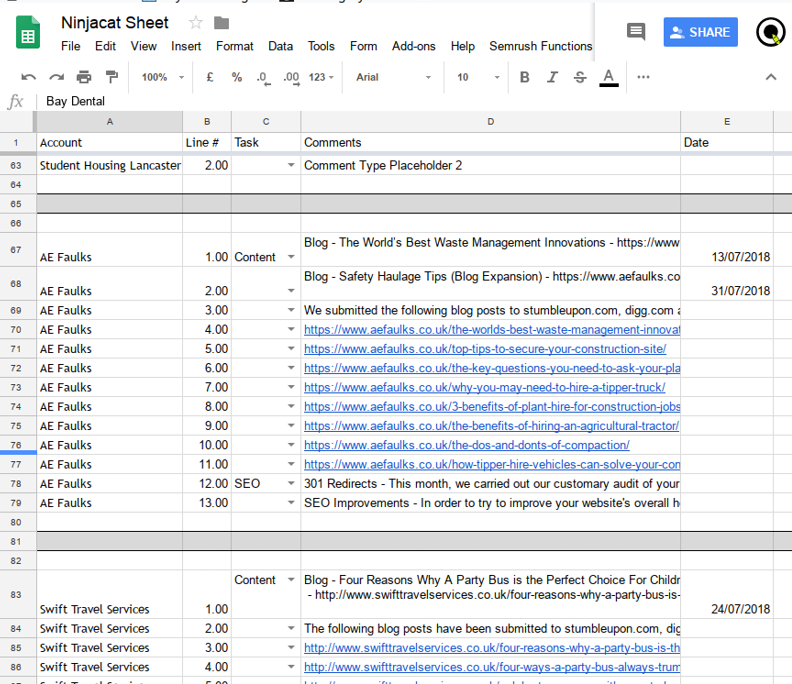
First off – one of the ways that this sheet differs from the Keywords sheet is that the number of Rows for each client is likely to change month-by-month. Rows should be added as required along with the account name and line number. Rows should be deleted if not required in order to maintain the integrity and neatness of the sheet. Notice that there is a bordered, grey bar separating each client.
The unique columns to the SEO-and-Content sheet are:
Task, Comments and Date.
Task – A simple dropdown to select between SEO and Content. It may need copying into a cell if new rows have been added.
Comments – This is the main bit; where the SEO or content write up goes. Since the Task has only two categories (SEO and Content) it is advised that any entry in the Comments column is prefaced with a little bit more detail. A look at the sheet as it is should give you some idea of how this is to be done and when.
As this is a spreadsheet be aware that there isn’t really any formatting that can be done within a cell. View it as if you were writing in a plain text or .txt file. Furthermore it is not advised that huge blocks of text be put in any individual cell – break it up. Two or three sentences in any one cell is an advised upper limit.
Date – this is really only relevant for certain entries in the Comments section and it does not matter if it is left blank.
TopVisorKW sheet
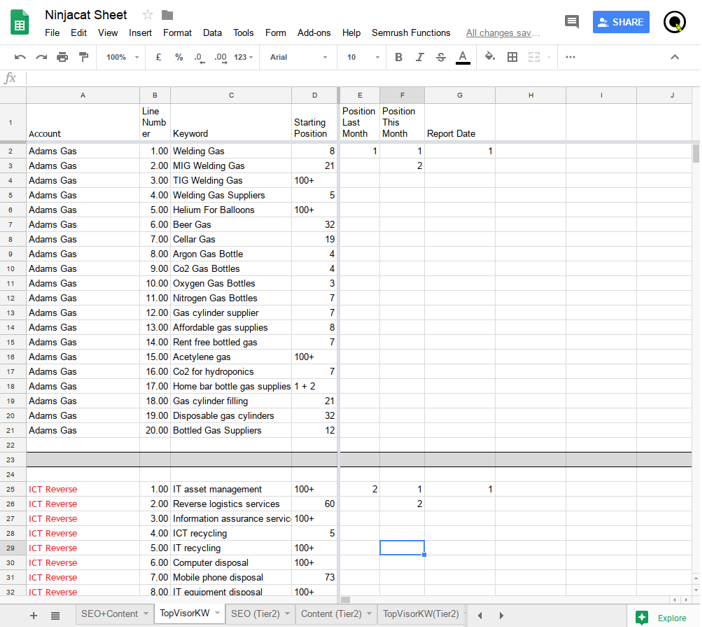
This sheet is a direct reflection of the data tracked for each client in TopVisor.
The number of rows for any given client are unlikely to change since each has a set number of keywords that are tracked from a starting position at the initiation of their contract with SQDigital. These initial keywords and their starting positions have their own columns which have been “frozen” along with the Account and Line# columns.
The remaining two columns are for Position This Month and Position Last Month. Pretty self-explanatory. As with the SEO and Content sheet, there is a bordered, grey bar separating each client.
There is one other column which is purely for reference (and probably isn’t 100% accurate at present) – Report Date. Reports have been set to generate one day after the start of an Interval (though the data is for the previous Interval). It’s there just to be able to cross-reference.
A last note on this: there will come a time when we use some other platform than TopVisor in order to track keywords and hopefully there will also come a point when that platform integrates directly with Ninjacat – when that happens this sheet will no longer be necessary. So, regard the TopVisor Keyword sheet as provisional, not a final solution.
Other Notes
With both of these sheets it will be a case, each Interval, of overwriting the previous Intervals data per client when it comes to entering the latest report information. The sheet is, therefore, not a permanent record – the activity log and generated report should be regarded as the permanent record.
The following has been used as standard when setting up each Report.
In the report edit screen in Ninjacat certain fields contain the following:
—————
Filename:
[Client Name] Monthly Report
_________________
Report email Subject:
{ACCOUNT_NAME} {FREQUENCY} Report {RUN_DATE}
Email body:
(Tier 3 and 2)
_________________
Automated PDF report for {ACCOUNT_NAME}
for the attention of {ACCOUNT_OWNER_NAME}
A copy of this Report has been sent to the Accelo Retainer and can be found in the Attachments directory:
Monthly Contracts -> {ACCOUNT_NAME} Digital Marketing -> Attachments -> [year] -> [month]
Email body:
(PPC Only)
________________
Automated PDF report for {ACCOUNT_NAME}
for the attention of {ACCOUNT_OWNER_NAME}
A copy of this Report has been sent to the Accelo Retainer and can be found in the Attachments directory:
Monthly Contracts -> {ACCOUNT_NAME} Monthly PPC Management -> Attachments -> [year] -> [month]
For the email address use the Email Alias from the Retainer in Accelo (e.g. [email protected]) and the Account Manager email address, separated by a semi-colon [;].
Noted quirks of the Google Sheet:
– any line for a given client that are duplicates will mess up the ordering of the lines (for somewhat complicated reasons). The simple solution is to include an extra character on one of the entries to differentiate them. A space at the end of the line will do.
So, for example, if there were two lines that both contained the same URL:
www.clientswebsiteaddress.co.uk/someblog
then one of them should have a space at the end
www.clientswebsiteaddress.co.uk/someblog_
<!–EndFragment–>