GENERAL – How To – Add Login Details To LastPass – Best Practices
Purpose of this SQ How To: This Guide clarifies LastPass best practices for adding login details.
Applicable to: All
Customers: NA
Timescale: 10 minutes
Option 1
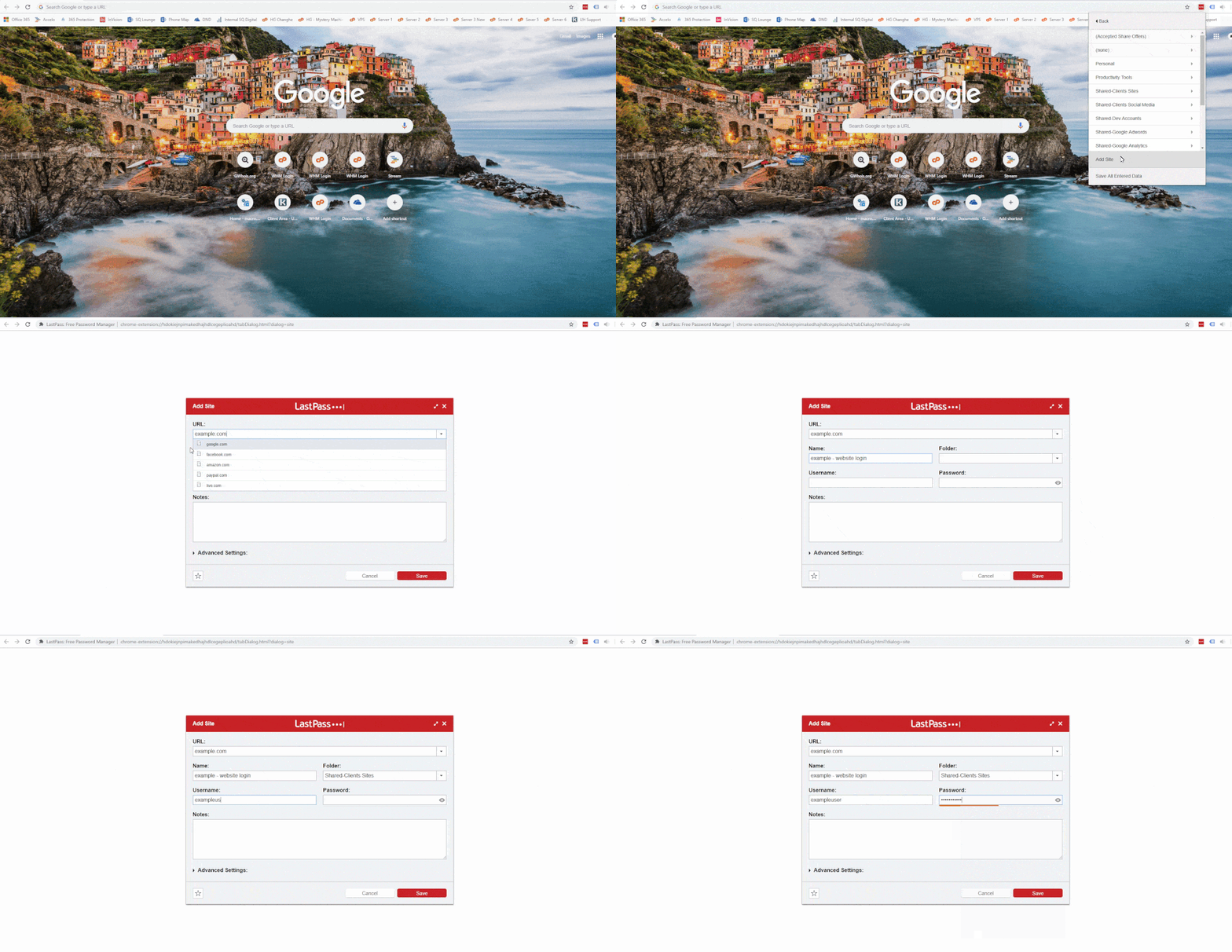
- Click the LastPass extension to open the LastPass navigation drop down.
- Click ‘Sites’ and then ‘Add Site’.
- In the URL field, enter the URL of the website you wish to save login details for.
- In the Name field, enter the client’s name followed by a relevant term, such as “Banks Lyon – Twitter” or “Banks Lyon – Website Login”. This makes it easier to find when using the Vault search.
- Select the relevant folder using the arrow icon for the login details to be saved into. (see folder key below)
- Enter the username & password.
- Click ‘Save’.
Click on the thumbnail below to open a GIF video of OPTION 1
Option 2
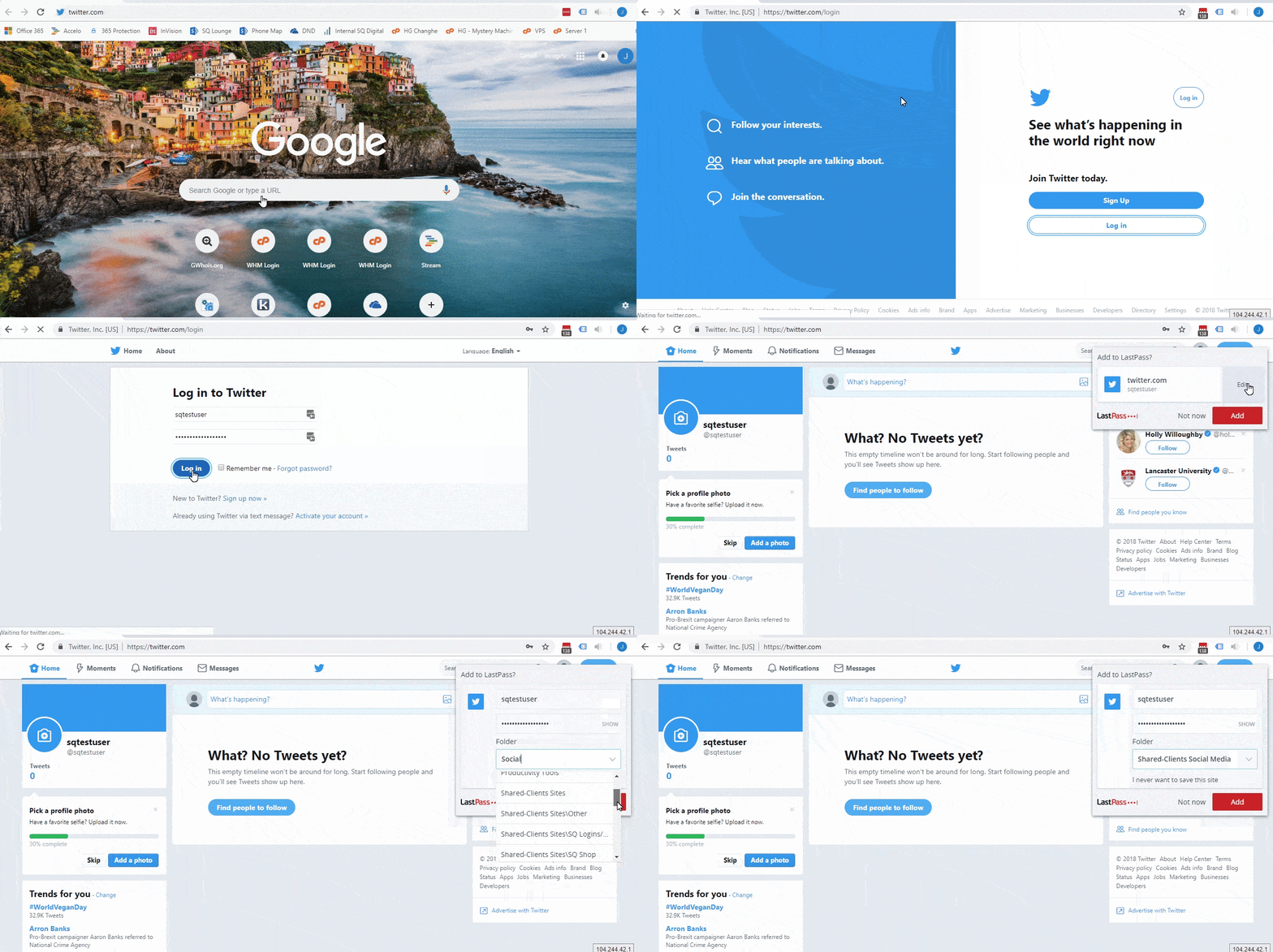
- Visit the website you wish to save login details for.
- Login to the website.
- You will then be prompted with a LastPass pop-up in the top right of your browser.
- Hover over the white box, this will make the ‘edit’ button to appear, click this.
- The username and password will already be populated with the details you used to login.
- Select the relevant folder for the login details to be saved into. (see folder key below)
- Click ‘Add’.
Click on the thumbnail below to open a GIF video of OPTION 2
Folder Key
Client Social Media Accounts = Shared-Clients Social Media
Client Website Accounts = Shared-Clients Sites
General Software/Tools = Shared-Software/Tools