Introduction
This document will show you how view your employees’ information and approve holiday requests.
Manager Options
If you are a Line Manager and have direct reports, you will have additional features when you login to Quest.
The additional options of EMS Dashboard, Authorisations, Planner and AdminLite will be available when logged into Quest as a Manager, along with the Me option, which is available to all employees.
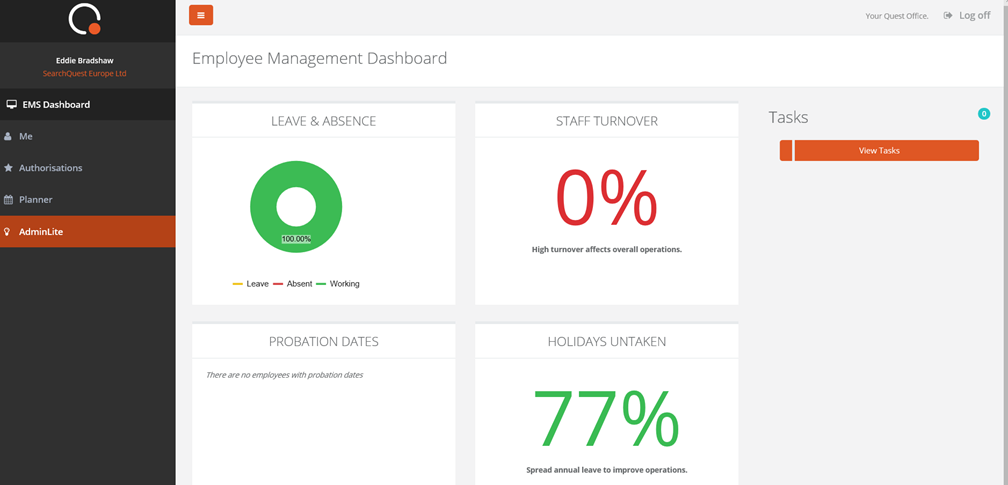
The EMS Dashboard will give you an overview of important information for your team, as shown below.
Authorisations
When selecting the Authorisations option from the list on the left-hand side, you will be taken to a list of any outstanding holiday requests which require authorisation.
You can toggle through PENDING, DECIDED and MY REQUESTS by selecting the options at the top right-hand side.
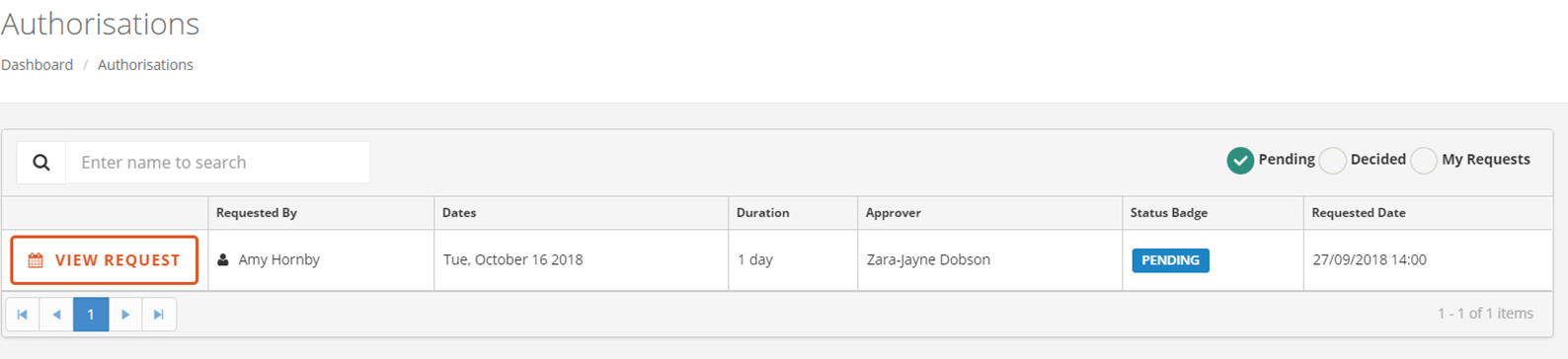
From this screen click, VIEW REQUEST. You’ll be taken to the holiday request information screen as below.
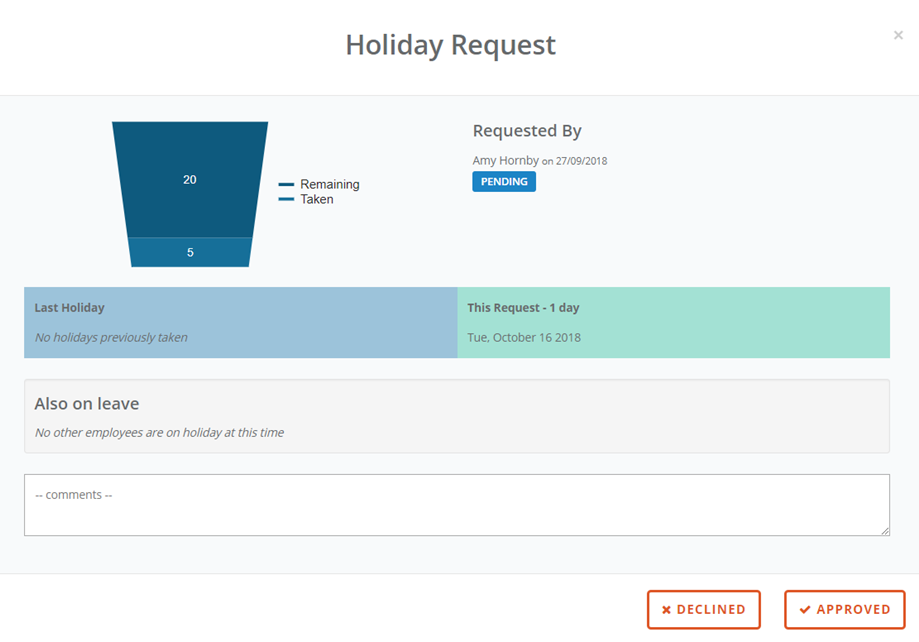
You are able to see from this screen who else in the team will be off at the same time.
To approve the request, click APPROVE.
If you wish to decline the holiday, please ensure you include your comments in the COMMENTS box, then click DECLINE.
You will be taken to this screen.
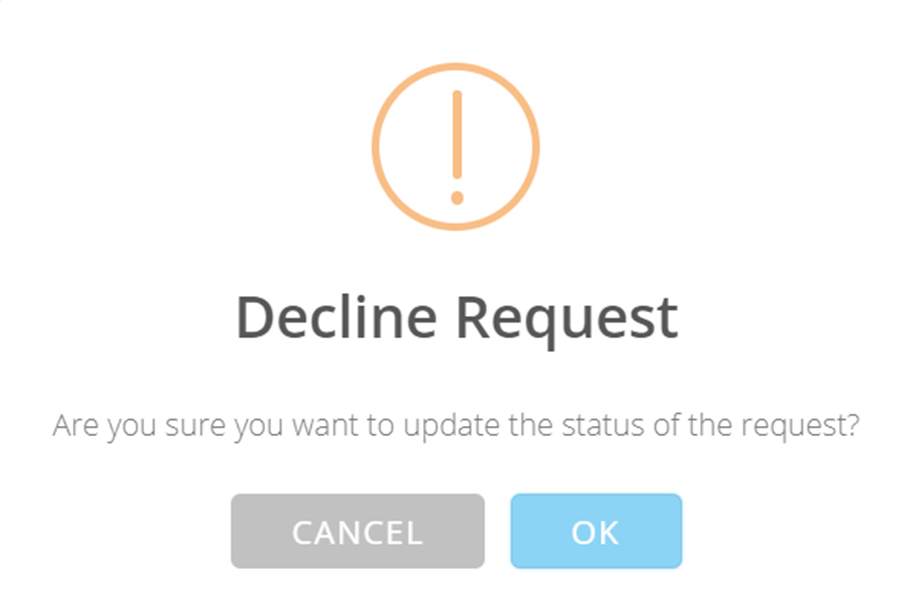
Click OK to continue with the holiday decline, the employee will then receive a holiday decline notification with your comments included.
If you would like to cancel declining, just click CANCEL and you will be taken back to the Holiday Request.
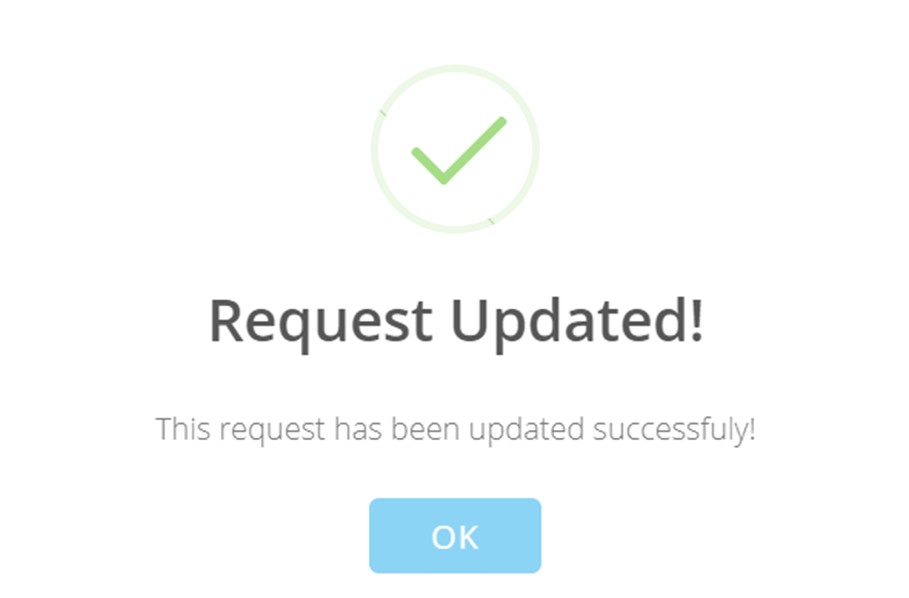
Once you have selected to approve or decline the holiday you will receive a pop up to let you know that the request has been updated.
Planner
When you select the PLANNER option from the sidebar, you will be able to select any of your reports and view their absence calendar. You can also view your own absence.
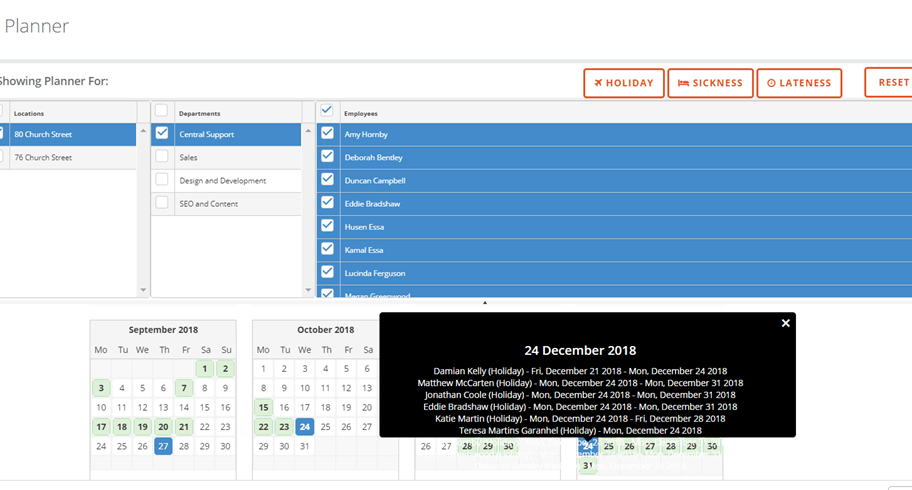
When viewing your employees’ planner, you can filter on HOLIDAYS, SICKNESS and LATENESS.
Approving Holidays Via Email Notification
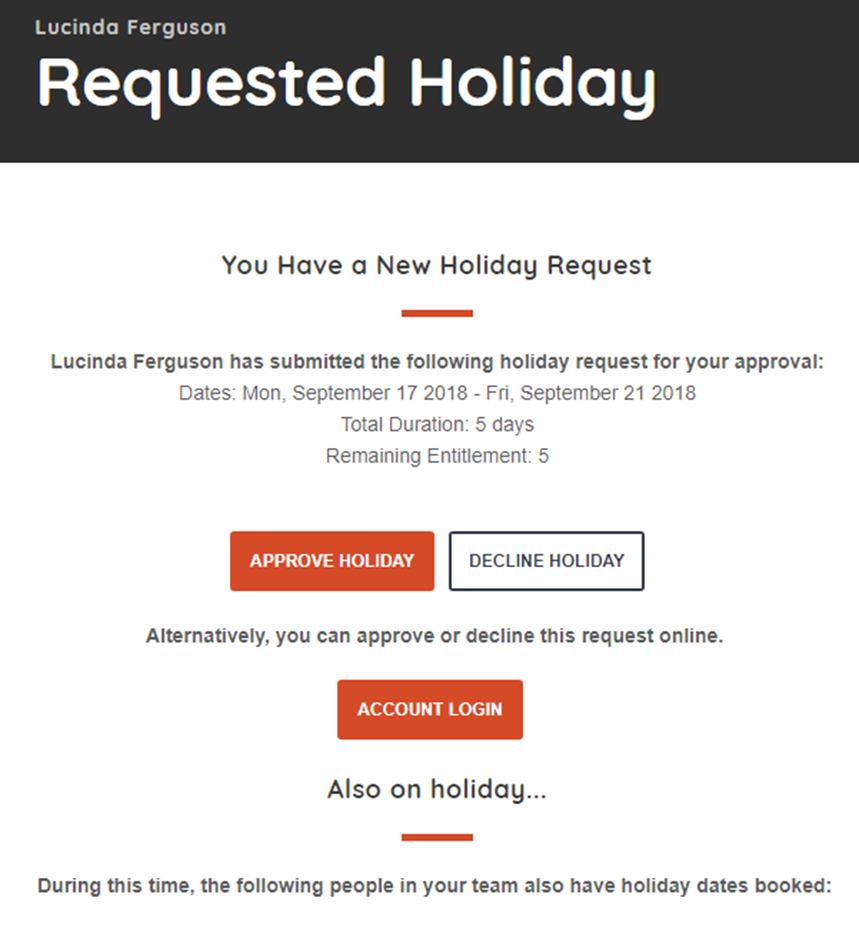
When one of your reports requests a holiday, you will receive a notification like the one shown below.
As a Manager, it is at your discretion as to whether you authorise or decline holiday requests from your employees. Much like the online system, you will be shown who in your team is also off, on the dates which have been requested.
If you are happy to approve the holiday request, click APPROVE HOLIDAY. Similarly, if you wish to decline the holiday request, click DECLINE HOLIDAY, please provide a reason upon declining.
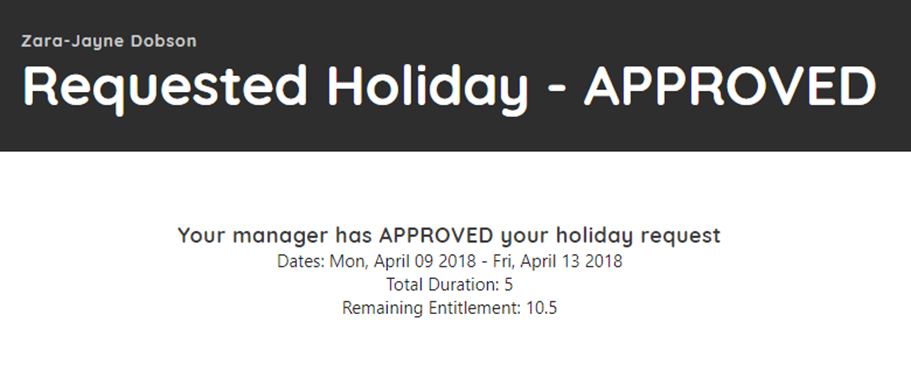
Once you approve or decline a holiday request you employee will receive a notification like the one shown below.
Following the approval of a holiday, HR will then record the details of the absence on Xero. We will no longer be using the Absence Spreadsheet.