PROJECT TEAM – How to – Schedule Planning Pods
Purpose of this How To Guide: To clarify how Planning Pods are scheduled (in a time efficient manner).
Applicable to: Project Managers
Customers: Silver Customers
Timescale: It takes around 20 minutes to schedule a complete Planning Pod (of around 4 individual Silver Customers)
Introduction
Silver Planning Meetings used to happen seperately and they caused disruption to working days because of the frequent interruptions. For this reason they are now schduled with several of them back to back. Organising this system and keeping it working requires the use of Excel, Accelo and Outlook. This Guide details this process.
3 Planning Meetings which together form a single Planning Pod are shown below, in a screengrab from Outlook.

Rationale behind the Planning Pods
- Planning Pods are 2 or more Silver Planning Meetings held back to back. This reduces the disruption caused by the meetings because having them spread out throughout the day was interrupting other work.
- Each Planning Pod contains Silver Planning Meetings for a specific pair of Content and SEO Execs. They are arranged to be convenient for other attendees (so 4 meetings between Hannah and Joel will have the 2 with Tony first, then the 2 with Martin, rather than repeatedly alternating back and forth between Martin and Tony).
- The organisation of Planning Pods changes every couple of Months (I.e. the individual meetings are “re-shuffled” into new combinations to be held on new dates). This happens because of changed Exec allocations, staff joining/leaving SQ, Customers upgrading etc.
- Planning meetings are organised into Planning Pods based on best fit. A specific pair of Execs may have only a small number of meetings together in a month, which means they may have only 1 or 2 Planning Pods into which these meetings are organised. This results in some meetings being up to 14 days before Interval End, and in others being on the final day of the Interval.
- Any reorganisation/re-shuffling of the Planning Pods requires that the Spreadsheet and your bookmarks (see below) are manually updated to be correct.
Getting set up ahead of Planning Pod Scheduling
Planning Pod scheduling is a lot faster if your machine is set up like this:
Planning pod spreadsheet locally – Have a copy of the sheet locally on your machine so you can modify it and “greenbox” the Customers that you have scheduled.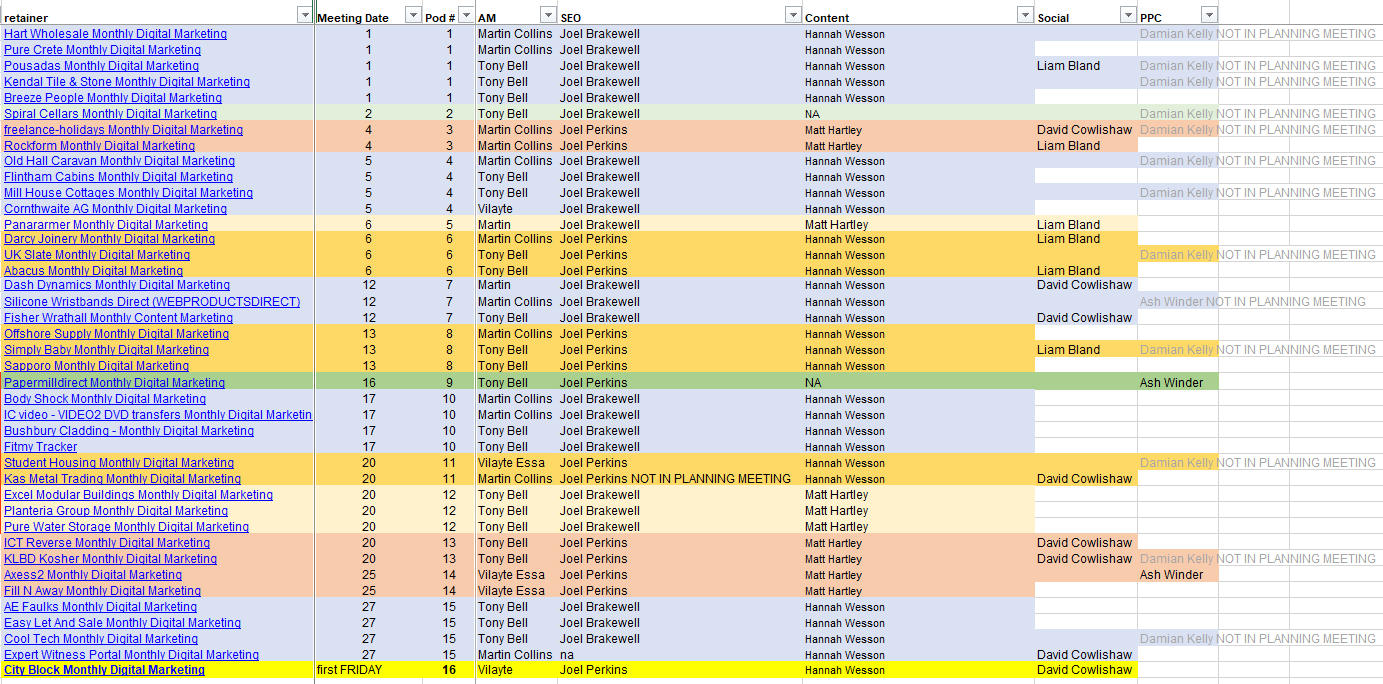
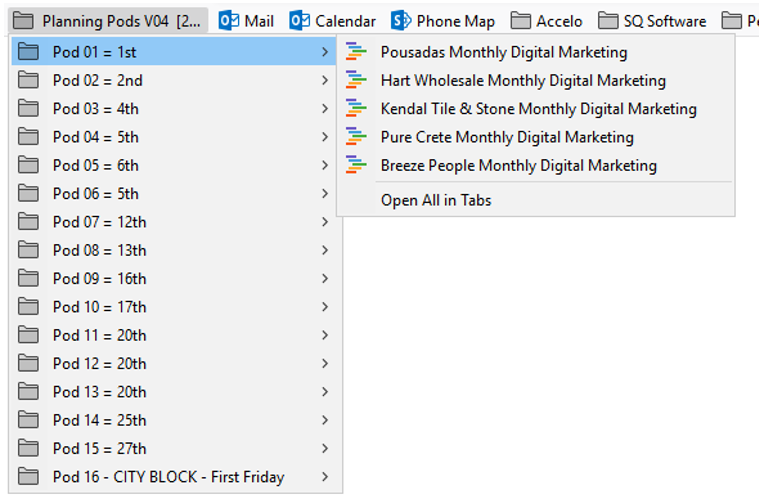
Planning Pods as bookmark folder – Set up bookmarks to the Retainers for all Customers in Planning Pods. Organise these in folders by Planning Pod and you will make things a lot faster and easier.
Scheduling Planning Pods
- When you receive the Task called “Planning – Open Next Interval & Schedule its Planning Pod” you start it’s timer.
- Look in the Excel to see which other Customers are in the same Pod
- For each (in the Pod)
- Check Outlook and make sure that the OPEN TASK actually needs doing (that the meeting is not already in outlook)
- Consider in which order to arrange the meetings within this Planning Pod so as to be convenient for all Attendees.
- Create the Meeting in Outlook if required
- Prefix it “PLANNING POD”
- Include the URL of the Planning meeting Task
- Include the available Pool (Eg. Pool = 8hrs 30min)
- SEO and Content are REQUIRED attendees
- AM and Social are always Optional attendees
- PPC is only invited for a small number of Customers (indicated in black text in the PLANNING POD SPREADSHEET). In this case PPC is an OPTIONAL attendee.
- Schedule the Pod when all attendees are available, on a weekday and not on a bank holiday.
- Open all the Retainers for that Planning Pod (in your bookmark folder click “open all in new tabs”)
- Make sure that the Planning – Plan Next Interval Task date is the same as the Outlook meeting date. Move Task date if required.
- Make sure the SEO – Health Check – To inform Planning for next interval Task date is 1 day earlier than the Outlook meeting date. Move Task date if required.
- Make sure the Planning – Account Manager Call [Unbillable] Task ends 1 day earlier than the Outlook meeting date. Move Task date if required.
- Once you have scheduled the meeting and moved the Task dates (if required) you log your time in the OPEN TASK and mark it Complete.
- Repeat step 3 until you have created a full Planning Pod with all of it’s meetings back to back in the order that is most convenient for the attendees.