Purpose of this SQ How To: To provide a framework and checklist for backlink audits that are being carried out with a view to judging the health of a customer’s link profile.
Owner: Senior SEO Executive
Applicable to: SEO Executives
Customers: All
Timescales: 2+ hours
Introduction
When a domain’s rankings drop, it is common practice to investigate their link profile to see whether this issue may be being caused by an abundance of harmful links. Such links can lead to a page or site-wide Penguin penalty. If harmful links are identified, then it is the role of an SEO Executive to liaise with the Account Manager to decide whether these links should be disavowed by submitting a disavow file via Google Search Console.
Preparing the Link Profile – Majestic SEO & Screaming Frog
Using Majestic SEO
Majestic SEO is one of the most useful tools for establishing the links that a domain has in its backlink profile. To investigate a domain’s link profile, it is recommended that you:
- Download a Raw Export of all Fresh Index Data from the customer’s root domain
- Download a Raw Export of all Historic Index Data from the customer’s root domain
- Collate source URLs and any other desired metrics (e.g. anchor text, follow/nofollow, etc) within one spreadsheet
Using Screaming Frog
- Once you have compiled the spread sheet on point 3 (above), go through the list and remove any duplicates by source URL.
- After removing duplicates, crawl all source URLs using Screaming Frog, setting up a filter (configuration > custom > search – see image below) with as many variations of the customer’s root domain as possible, for example:
- www.sqdigital.co.uk
- sqdigital.co.uk
- https://www.sqdigital.co.uk/
- http://www.sqdigital.co.uk/
- https://sqdigital.co.uk/
- http://sqdigital.co.uk/
- And any other examples you can think of or come across.
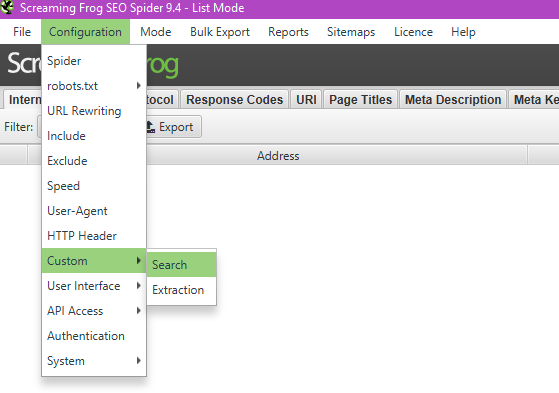
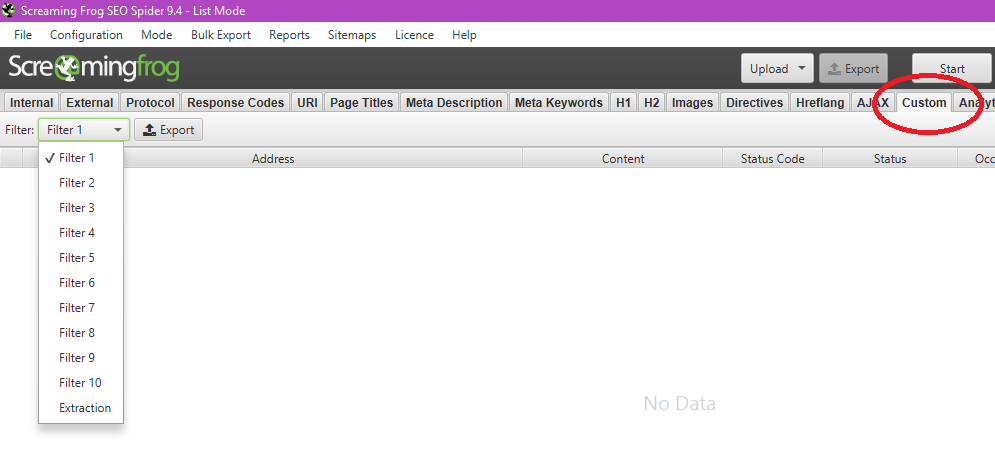
- Export the list of URLs remaining in the Screaming Frog custom tabs (see image below) into a list of ‘live links’. Create a new column in your spreadsheet for these links.
- Using the formula from the Link Profile Training Spreadsheet (see below) input the relevant cell details into the highlighted areas…
- =IF(ISERROR(MATCH(First cell letter and number of source URL column,$Letter of first live links column$Number of first live links column:$Letter of last live links column$Number of last live links column,0)),””,First cell letter and number of source URL column)
- …to identify those URLs from your original source list that are still live, and condense the information in your link profile to focus on them using filters.
- Review these links and their root domains according to nofollow status, DA, the relevancy of the site, identifiable toxicity of the referring website, etc
Surveying the Profile – Link Research Tools
Link Research Tools provides a guideline relating to the toxicity of a domain’s link profile. Alongside the Majestic SEO research, it is recommended that you:
- Run a Link Detox on the customer’s domain, manually classifying keywords
- Group results by domain, and manually inspect any that are flagged as harmful
- This information can then be cross-referenced with the data from Majestic SEO to give you as full a picture as possible of the customer’s link profile.
Disavow
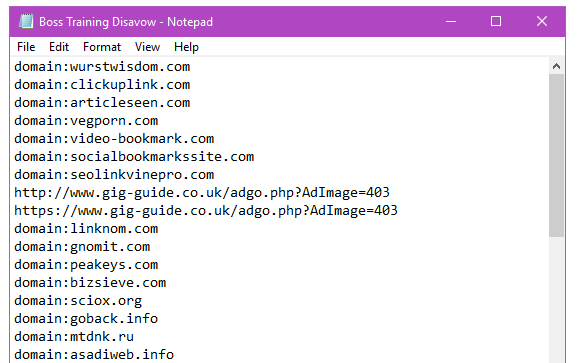
If the above research leads you to decide that any domains need disavowing, then submit a notepad file using https://www.google.com/webmasters/tools/disavow-links-main while logged into the relevant search console account. This notepad file should include each root domain you wish to disavow according to the following format (see image below), as well as any individual URLs:
- disavow:examplerootdomain.co.uk
- disavow:examplerootdomain2.com
- disavow:examplerootdomain3.com
- www.exampleindividualurl.com
- www.exampleindividualurl.co.uk
- In priority cases, 2 days after the disavow is submitted, you can submit a Link Detox Boost using Link Research Tools to quicken Google’s acceptance of the file.