How To for Raising DND tasks or quote requests for DM customers in Teamwork
Purpose of this How To Guide: This guide will provide you with step-by-step instructions on how to raise DND tasks or quote requests for DM customers within Teamwork.
Owner: Husen Essa
Applicable to: Account Managers
Customers: All
Timescale: 2-5 Minutes
Introduction
The Account Manager is responsible for creating D&D Ad Hoc Work Tasks for DM customers. Any requests by other departments are to be sent to the Account Manager via a message on the Customers project in Teamwork.
The Account Manager will then authorise the work and convert it to a task to either be quoted for first or completed ASAP for urgent issues.
A new D&D Ad Hoc Work task should be raised for each different ad hoc job.
Details Required:
- Company of client
- Description of work required
- Preferred estimated completed date (I/A)
- Estimate of time (If already quoted verbally by the DND project manager – Husen)
Guide:
1. The first step of raising a task or quote request for the DND department is to navigate to the relevant customer DM project through the “Projects” page, within which the Ad-Hoc task will be held when created. Please choose the most appropriate project, as an example – if it’s an issue with PPC tracking which requires a developers assistance, the issue should be raised within the PPC project.
2. Once you have accessed the chosen project you will need to navigate to the List tab, where you will find the existing tasks lists for each monthly interval. From here you should then decide which monthly interval you would prefer the DND time to be taken from.
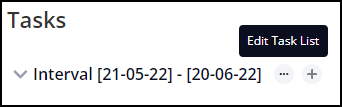
3. Now you have chosen a particular interval, you need to create the tasks required for DND to complete the work or quote. To do this click the “Edit Task List” button, shown as “…” next to the task list name.
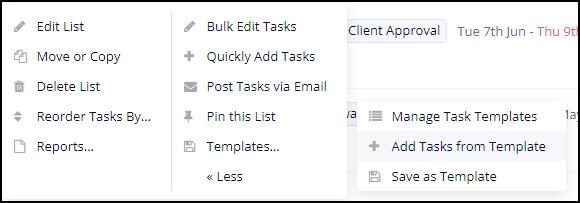
4. Clicking the “Edit Task List” button will display an additional navigation area. You will need to hover over “Templates…” on the second column and select “Add Tasks from Template” on the third column which appears.
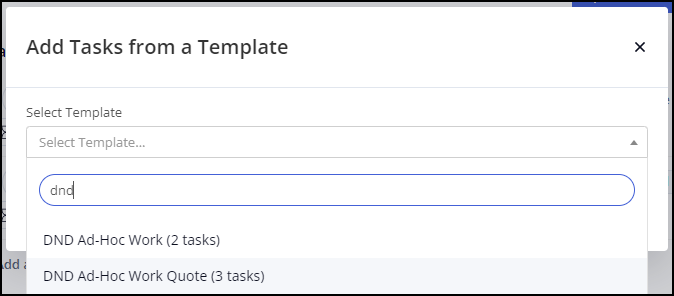
5. You should then be presented with a pop-up box named “Add Tasks from a Template”. Within this box is a “Select Template” search field, which you will use to find the “DND Ad-Hoc Work Task” list templates, of which there are two. Search for the phrase “DND Ad-Hoc” and you will find two “DND Ad-Hoc” template options.
- “DND Ad-Hoc Work (2 tasks)” – Please select this option if a quote has already been verbally discussed and agreed with the DND project manager.
- “DND Ad-Hoc Work Quote (3 tasks)” – Please select this option if you require a quote first, before the work is scheduled and completed.
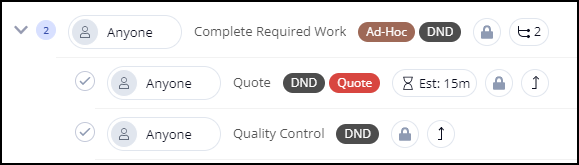
6. Once you have selected the preferred option, you will see a preview of the tasks and subtasks which will be created. Click “Apply Template” to complete the initial creation of the tasks. You will then see the DND tasks which have been added to the chosen interval task list.
7. Now you have the templated DND tasks in place, you will need to populate either the “Completed Required Work” task or the “Quote” subtask. This will be determined by the template option you have chosen on Step 5.
If you selected “DND Ad-Hoc Work” you will populate the “Completed Required Work” task for Step 8.
If you selected “DND Ad-Hoc Work Quote” you will populate the “Quote” subtask for Step 8.
8. To populate the required task efficiently you will need to complete the following task fields:
Task Details Tab – Assignee – Assign to the DND project manager and tick the “Notify by email?” box when this appears, if not already ticked.
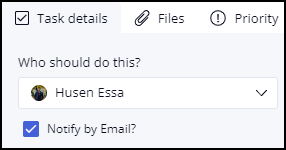
If the DND project manager does not appear on the assignee list, you will need to add the manager to the project in the people page/tab, using the blue “Add People” button.
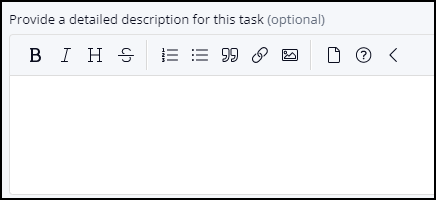
Task Details Tab – Description – Provide a detailed description of the work required. If a quote has already been agreed, please mention this within the description and include the total time discussed.
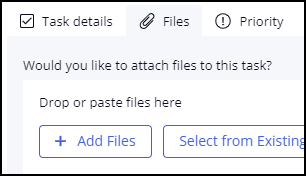
Files Tab – Add Files – Please add any files or resource documents associated to the work required, if applicable.
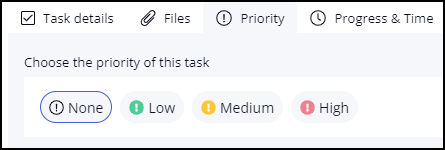
Priority – If the work requested is urgent and requires addressing ASAP, please select the “High” priority. For anything else select “Medium” or “Low”, whichever you feel is most appropriate.
Please do not adjust the task time, this will be set by the DND project manager once assigned.
9. After you have populated all required task fields mentioned in Step 8, you will need to click “Save Changes”. If you do not click “Save Changes”, all populated fields will be reset and lost.
10. You have now successfully raised a task or quote request to the DND department.